
AWS Linux Tutorial -- Part 11: Monitoring with CloudWatch
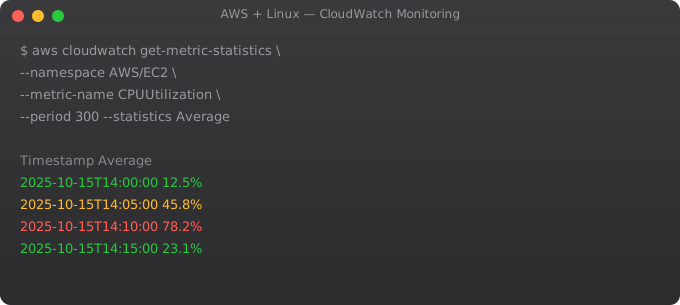
You cannot manage what you cannot measure. CloudWatch is AWS's built-in monitoring service -- it collects metrics, aggregates logs, triggers alarms, and powers dashboards. Setting up proper monitoring before you have a production incident is what separates proactive operations from reactive firefighting.
Default EC2 Metrics
# Basic EC2 metrics (5-minute intervals, free):
CPUUtilization          # CPU usage percentage
NetworkIn / NetworkOut  # Network traffic bytes
DiskReadOps / DiskWriteOps  # Disk I/O operations
StatusCheckFailed       # Instance and system status checks

# View via CLI
aws cloudwatch get-metric-statistics \
  --metric-name CPUUtilization \
  --namespace AWS/EC2 \
  --dimensions Name=InstanceId,Value=i-1234567890abcdef \
  --start-time 2026-01-01T00:00:00Z \
  --end-time 2026-01-01T01:00:00Z \
  --period 300 \
  --statistics Average
CloudWatch Agent -- Detailed Metrics
# Install CloudWatch Agent on EC2
wget https://s3.amazonaws.com/amazoncloudwatch-agent/ubuntu/amd64/latest/amazon-cloudwatch-agent.deb
sudo dpkg -i amazon-cloudwatch-agent.deb

# Create config with wizard
sudo /opt/aws/amazon-cloudwatch-agent/bin/amazon-cloudwatch-agent-config-wizard

# Or create /opt/aws/.../config.json manually:
{
  "metrics": {
    "namespace": "MyApp",
    "metrics_collected": {
      "mem": {"measurement": ["mem_used_percent"]},
      "disk": {"measurement": ["disk_used_percent"],
               "resources": ["/", "/data"]},
      "cpu": {"measurement": ["cpu_usage_active"], "totalcpu": true}
    }
  },
  "logs": {
    "logs_collected": {
      "files": {"collect_list": [
        {"file_path": "/var/log/myapp/app.log",
         "log_group_name": "myapp", "log_stream_name": "{instance_id}"}
      ]}
    }
  }
}

# Start agent
sudo systemctl start amazon-cloudwatch-agent
CloudWatch Alarms
aws cloudwatch put-metric-alarm \
  --alarm-name "High-CPU" \
  --alarm-description "CPU above 80% for 5 minutes" \
  --metric-name CPUUtilization \
  --namespace AWS/EC2 \
  --dimensions Name=InstanceId,Value=i-1234567890abcdef \
  --statistic Average \
  --period 300 \
  --threshold 80 \
  --comparison-operator GreaterThanThreshold \
  --evaluation-periods 1 \
  --alarm-actions arn:aws:sns:ap-south-1:123456789:alerts \
  --ok-actions arn:aws:sns:ap-south-1:123456789:alerts
Frequently Asked Questions
What is the difference between metrics and logs in CloudWatch?
Metrics are numerical time-series data (CPU%, request count). Stored for 15 months, queryable, alarmable. Logs are text records of events. Stored in log groups, searchable with Log Insights. Both are essential -- metrics for alerting, logs for debugging.
How do I search logs with CloudWatch Log Insights?
CloudWatch > Log Insights > Select log group > Run query. Example: fields @timestamp, @message | filter @message like /ERROR/ | sort @timestamp desc | limit 100. Log Insights supports SQL-like syntax for filtering, aggregating, and visualising log data.
How do I reduce CloudWatch costs?
Metrics: default EC2 metrics are free. Detailed monitoring (1-minute) costs extra. Logs: set retention periods (delete logs older than 30 days). Log Insights queries are charged per GB scanned. Custom metrics: $0.30 per metric/month.
What SNS topic should alarms notify?
Create an SNS topic, subscribe your email or PagerDuty/Slack webhook. When alarm triggers, SNS sends notifications to all subscribers. For critical alarms: PagerDuty for on-call rotation. For warnings: Slack channel. For all alerts: email.
How do I create a CloudWatch dashboard?
Console: CloudWatch > Dashboards > Create Dashboard. Add widgets: graphs for metrics, log query results, and alarm status. Share dashboards with read-only links. Use dashboards to create an operations overview showing the health of all your AWS resources at a glance.
In Part 12, we deploy a complete real application end-to-end on AWS -- combining everything from this series.
Key takeaways
- RTO (recovery time) and RPO (data loss tolerance) drive your DR strategy. Don't design DR without these numbers from the business.
- Strategies, from cheap to expensive: Backup & Restore → Pilot Light → Warm Standby → Active/Active. Pick based on RTO/RPO and budget.
- Test your DR. A DR plan you've never tested is a DR fiction. Quarterly fire-drills, with real failovers.
- Multi-region is hard. Most teams should master multi-AZ first. Multi-region adds complexity that often isn't worth it for the actual risk.
CloudWatch Synthetics -- Canary Testing
# CloudWatch Synthetics runs headless browser scripts
# that continuously test your application from the outside

# Create a canary via CLI
aws synthetics create-canary   --name myapp-health-check   --code S3Bucket=my-canary-bucket,S3Key=canary.zip   --artifact-s3-location s3://my-canary-artifacts/health-check   --execution-role-arn arn:aws:iam::123456789:role/canary-role   --schedule Expression="rate(5 minutes)"   --runtime-version syn-nodejs-puppeteer-6.2

# Simple canary script (canary.js):
const synthetics = require("Synthetics");

const checkApi = async () => {
    const response = await synthetics.executeHttpStep(
        "Check /health endpoint",
        {
            hostname: "api.myapp.com",
            method: "GET",
            path: "/health",
            port: 443,
            protocol: "https:",
        }
    );
    if (response.statusCode !== 200) {
        throw new Error("Health check failed: " + response.statusCode);
    }
};

exports.handler = async () => { await checkApi(); };
Application Performance Monitoring with X-Ray
# Install X-Ray SDK in Python
pip install aws-xray-sdk

# Instrument Flask application
from aws_xray_sdk.core import xray_recorder, patch_all
from aws_xray_sdk.ext.flask.middleware import XRayMiddleware

app = Flask(__name__)
xray_recorder.configure(service="myapp-api", region="ap-south-1")
XRayMiddleware(app, xray_recorder)
patch_all()  # Auto-instrument boto3, requests, SQLAlchemy

@app.route("/api/orders")
def get_orders():
    # X-Ray automatically traces this request
    # Including any downstream AWS calls (S3, DynamoDB, etc.)
    with xray_recorder.in_subsegment("database-query"):
        orders = db.query(Order).all()
    return jsonify([o.to_dict() for o in orders])
Custom CloudWatch Metrics from Application
import boto3
from datetime import datetime

cloudwatch = boto3.client("cloudwatch", region_name="ap-south-1")

def track_business_metric(metric_name, value, unit="Count", dimension=None):
    dimensions = []
    if dimension:
        dimensions.append({"Name": dimension[0], "Value": dimension[1]})

    cloudwatch.put_metric_data(
        Namespace="MyApp/Business",
        MetricData=[{
            "MetricName": metric_name,
            "Value": value,
            "Unit": unit,
            "Timestamp": datetime.utcnow(),
            "Dimensions": dimensions
        }]
    )

# Track business events
track_business_metric("OrdersCreated", 1, dimension=("Environment", "production"))
track_business_metric("PaymentAmount", 999.99, unit="None")
track_business_metric("ActiveUsers", active_user_count)
CloudWatch Container Insights
# Enable Container Insights for EKS
aws eks update-addon   --cluster-name my-cluster   --addon-name amazon-cloudwatch-observability   --addon-version v1.7.0-eksbuild.1

# This automatically collects:
# - CPU and memory usage per pod
# - Network throughput per service
# - Container restart counts
# - Disk I/O per node

# View in console: CloudWatch > Container Insights > EKS Clusters

# Useful Container Insights queries:
# Find pods with high CPU
SHOW AVG(CpuUtilized) AS "CPU (cores)"
FROM SCHEMA("ContainerInsights", ClusterName, Namespace, PodName)
WHERE ClusterName = 'my-cluster'
ORDER BY "CPU (cores)" DESC
LIMIT 20
CloudWatch Embedded Metric Format
import json, time

def log_with_metrics(order_id, amount, processing_time_ms):
    """Emit structured log that CloudWatch parses for metrics."""
    metric_log = {
        "_aws": {
            "Timestamp": int(time.time() * 1000),
            "CloudWatchMetrics": [{
                "Namespace": "MyApp/Orders",
                "Dimensions": [["Environment"]],
                "Metrics": [
                    {"Name": "OrderAmount", "Unit": "None"},
                    {"Name": "ProcessingTime", "Unit": "Milliseconds"}
                ]
            }]
        },
        "Environment": "production",
        "OrderId": order_id,
        "OrderAmount": amount,
        "ProcessingTime": processing_time_ms
    }
    print(json.dumps(metric_log))
    # CloudWatch automatically creates metrics from this log!