
AWS Linux Tutorial -- Part 7: IAM Roles, Users & Policies
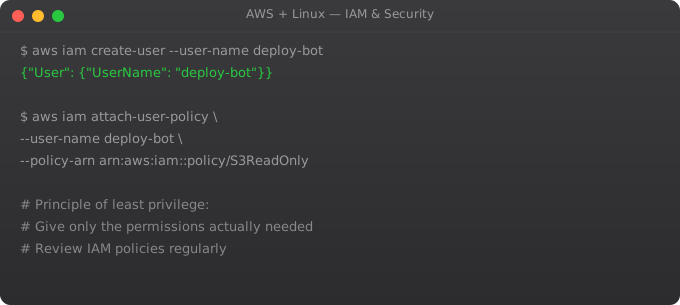
IAM (Identity and Access Management) is the backbone of AWS security. Every API call to AWS is authenticated and authorised through IAM. Understanding how to create users, roles, and policies correctly is essential for securing your AWS infrastructure.
IAM Concepts
IAM User     -- A person or service with permanent credentials
IAM Group    -- Collection of users with shared permissions
IAM Role     -- Temporary credentials assumed by services or users
IAM Policy   -- JSON document defining permissions

# Key principle: NEVER use root account for daily work
# Create an IAM user with only the permissions needed
Create an IAM User with CLI
aws iam create-user --user-name developer
aws iam create-access-key --user-name developer
# Save the AccessKeyId and SecretAccessKey -- shown only once!

aws iam create-group --group-name developers
aws iam add-user-to-group --user-name developer --group-name developers

# Attach a managed policy
aws iam attach-group-policy \
  --group-name developers \
  --policy-arn arn:aws:iam::aws:policy/ReadOnlyAccess
EC2 Instance Roles
# BEST PRACTICE: Use IAM roles for EC2, NOT access keys
# Roles provide temporary credentials automatically

# Create role in Console:
# IAM > Roles > Create Role
# Trusted entity: AWS Service > EC2
# Attach policy: AmazonS3ReadOnlyAccess
# Name: ec2-s3-read-role

# Attach to EC2:
# EC2 > Actions > Security > Modify IAM Role

# Now from inside EC2, no credentials needed:
aws s3 ls  # Works automatically via instance metadata!
Custom IAM Policy
{
  "Version": "2012-10-17",
  "Statement": [
    {
      "Effect": "Allow",
      "Action": ["s3:GetObject", "s3:ListBucket"],
      "Resource": [
        "arn:aws:s3:::my-app-bucket",
        "arn:aws:s3:::my-app-bucket/*"
      ]
    },
    {
      "Effect": "Allow",
      "Action": ["cloudwatch:PutMetricData"],
      "Resource": "*"
    }
  ]
}
Frequently Asked Questions
What is the difference between a user and a role?
Users have permanent credentials (username/password, access keys). Roles have temporary credentials that expire. EC2 instances, Lambda functions, and CI/CD systems should use roles, not users. Roles are more secure because credentials rotate automatically.
Should I use AWS managed policies or custom policies?
AWS managed policies (like AmazonS3ReadOnlyAccess) are maintained by AWS and updated when services add new features. Custom policies give fine-grained control. Start with managed policies for simplicity, create custom policies when you need to restrict access more precisely.
How do I audit what IAM permissions are being used?
Use IAM Access Analyzer to find unused permissions. Enable CloudTrail to log all API calls. Use AWS Config to track IAM policy changes. The IAM credential report shows when credentials were last used.
What is AWS STS and when do I use it?
STS (Security Token Service) issues temporary security credentials. Used for: assuming roles cross-account, federating with external identity providers, and short-lived credentials for CI/CD. aws sts assume-role --role-arn arn:aws:iam::123456789:role/myrole --role-session-name mysession
How do I rotate access keys?
IAM > Users > Security credentials > Create access key (creates new). Update applications with new key. Test new key works. Deactivate old key. After confirming nothing uses old key, delete it. Never delete the only active key without a replacement ready.
In Part 8, we write bash scripts to automate AWS tasks from the Linux command line.
Key takeaways
- ALB (Application Load Balancer) for HTTP/HTTPS, NLB (Network Load Balancer) for TCP/UDP, GLB (Gateway Load Balancer) for security appliances. Pick by protocol need.
- Target groups are how the LB routes requests. Health checks on target groups decide who gets traffic.
- Auto Scaling Groups (ASGs) launch and terminate instances based on metrics. Pair with ALBs for elastic, self-healing fleets.
- Don't autoscale on CPU only. CPU often doesn't reflect actual load — request count, queue depth, or custom metrics are usually better signals.
IAM Policy Writing Patterns
# Read-only access to specific S3 bucket + path
{
  "Version": "2012-10-17",
  "Statement": [{
    "Effect": "Allow",
    "Action": ["s3:GetObject", "s3:ListBucket"],
    "Resource": [
      "arn:aws:s3:::myapp-production",
      "arn:aws:s3:::myapp-production/config/*"
    ]
  }]
}

# EC2 instance + CloudWatch + SSM (common for app servers)
{
  "Version": "2012-10-17",
  "Statement": [
    {
      "Effect": "Allow",
      "Action": ["cloudwatch:PutMetricData"],
      "Resource": "*"
    },
    {
      "Effect": "Allow",
      "Action": ["ssm:GetParameter", "ssm:GetParametersByPath"],
      "Resource": "arn:aws:ssm:ap-south-1:123456789:parameter/myapp/*"
    },
    {
      "Effect": "Allow",
      "Action": ["secretsmanager:GetSecretValue"],
      "Resource": "arn:aws:secretsmanager:ap-south-1:123456789:secret:myapp/*"
    }
  ]
}
AWS Secrets Manager vs Parameter Store
# Secrets Manager: for passwords, API keys, database credentials
aws secretsmanager create-secret   --name myapp/database/password   --secret-string "super-secure-password-123"

# Retrieve secret in application
import boto3, json

def get_db_password():
    client = boto3.client("secretsmanager", region_name="ap-south-1")
    response = client.get_secret_value(SecretId="myapp/database/password")
    return response["SecretString"]

# Parameter Store: for non-sensitive config (URLs, feature flags)
aws ssm put-parameter   --name "/myapp/production/db-host"   --value "mydb.abc123.ap-south-1.rds.amazonaws.com"   --type String

# Retrieve parameter
aws ssm get-parameter --name "/myapp/production/db-host" --query "Parameter.Value" --output text
IAM Permission Boundaries
# Permission boundary: maximum permissions a role can have
# Even if role has AdministratorAccess, boundary limits effective permissions

# Create a boundary that limits to specific services
aws iam create-policy   --policy-name DevBoundary   --policy-document '{
    "Version": "2012-10-17",
    "Statement": [{
      "Effect": "Allow",
      "Action": ["s3:*", "ec2:*", "cloudwatch:*"],
      "Resource": "*"
    }]
  }'

# Apply boundary when creating a role
aws iam create-role   --role-name dev-role   --assume-role-policy-document file://trust-policy.json   --permissions-boundary arn:aws:iam::123456789:policy/DevBoundary

# Use case: Allow developers to create IAM roles for their apps
# but prevent privilege escalation (they cannot create Admin roles)
Cross-Account Access with IAM Roles
# In Account B (target): Create role that Account A can assume
{
  "Version": "2012-10-17",
  "Statement": [{
    "Effect": "Allow",
    "Principal": {
      "AWS": "arn:aws:iam::ACCOUNT_A_ID:root"
    },
    "Action": "sts:AssumeRole",
    "Condition": {
      "StringEquals": {
        "sts:ExternalId": "unique-external-id-for-security"
      }
    }
  }]
}

# In Account A: Assume the role in Account B
aws sts assume-role   --role-arn arn:aws:iam::ACCOUNT_B_ID:role/cross-account-role   --role-session-name deploy-session   --external-id unique-external-id-for-security

# Use the temporary credentials
export AWS_ACCESS_KEY_ID=
export AWS_SECRET_ACCESS_KEY=
export AWS_SESSION_TOKEN=